



Dashboards are a powerful tool within your HubSpot portal. They are where teams can track KPIs and align around a single truth. If used correctly, they provide your team with valuable information. But if you don’t know how to use them, they can turn into a graveyard of data and charts no one quite knows what to do with.
This blog walks through what HubSpot dashboards do, how to use them at a basic level and our review of their effectiveness.
What are HubSpot Dashboards?
A dashboard in HubSpot is a customizable page that displays multiple reports. It lets you:
- Group related reports into one view
- Mix data across CRM objects (contacts, companies, deals, tickets, custom objects, etc.) when those reports are built using the custom report builder or datasets
- Filter compatible reports by date, owner, pipeline and other properties
- Share and schedule dashboard snapshots to your team via email, Slack or Google Chat
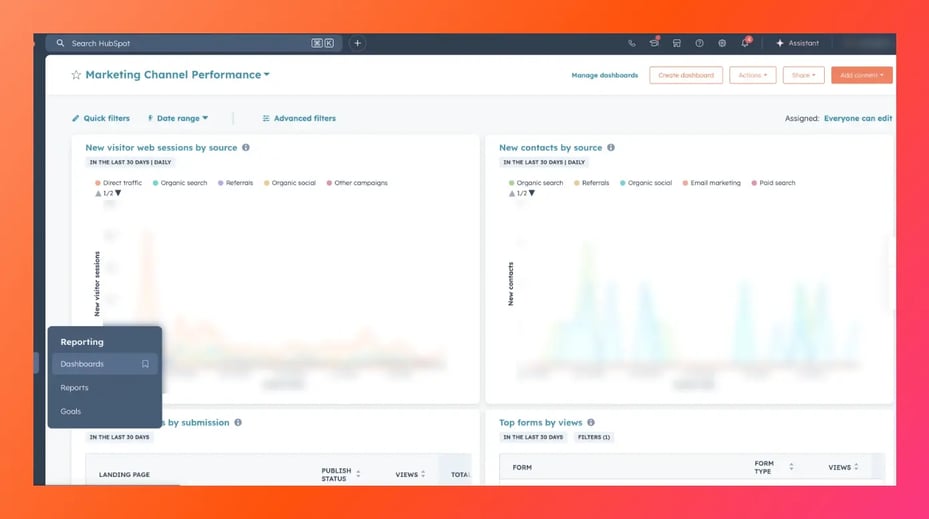
Dashboards sit under Reporting → Dashboards and are available across all products and plans, with limits on the number of dashboards and access to custom reporting varying by plan.
The dashboards themselves are free/ubiquitous; the complexity comes from the reports you put on them. This is dictated by your tier.
What You Can Put on a Dashboard
You can add:
- Standard reports from the report library (traffic, deals, email performance, lifecycle, tickets, etc.)
- Custom reports built in the custom report builder
- Cloned reports with slightly different filters (e.g., one per pipeline or owner)
- External content tiles like Google Slides, Google Sheets, YouTube or other embeddable content on Pro+ tiers for most hubs
- Text/images/video tiles for context or internal notes
The visualization type (line, bar, table, funnel, etc.) is dictated by the report itself, not the actual dashboard.
Basic How-To: Using Dashboards at a Starter Level
If someone is new to dashboards, this is an easy way to get started.
1. Create a Dashboard
Go to:
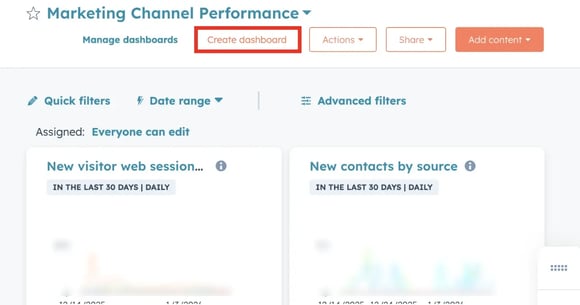
Reporting → Dashboards → Create dashboard
You can start from scratch or use a template. HubSpot provides its own recommended dashboards for marketing performance, service, web and sales.
Give the dashboard a name and choose its visibility (private, everyone or specific users/teams on Enterprise), and you’re ready to add reports.

2. Add Reports
There are three main options:
- From the report library: browse by category (Marketing, Sales, Service, etc.) and add standard reports.
- From custom reports: if you’ve already built a report under Reporting → Reports, you can add it directly.
- Clone and tweak: clone an existing report and adjust filters (regions, teams, owners) to generate a set of similar views.
Once added, you’re free to resize and rearrange reports on the dashboard with drag and drop.
3. Apply Dashboard Filters
Dashboard filters are powerful but not universal and apply only to reports built on the same primary object or dataset.
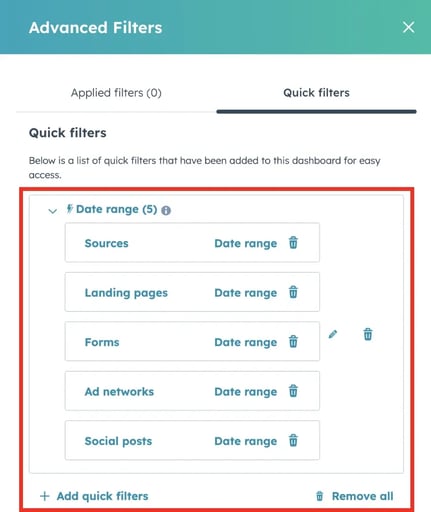
You can add Advanced filters and Quick filters that control things like:
- Date range (e.g., “Last 30 days,” “This quarter,” custom dates)
- Record owner or team
- Pipeline (for deals/tickets)
- Other object properties, depending on the data source
However:
- Filters only affect reports that use the same data source and property. If you filter by Contact owner, only reports built on the Contact data source respond.
- Certain report types don’t support dashboard filters.
So dashboard filters are great, but not magic. They won’t override every report.
4. Set Access & Ownership
From the dashboard’s Manage access settings, you can control who sees what:
- Private to owner
- Everyone can view
- Everyone can view and edit
- Limited to super admins & owner
- Assign specific users/teams (Enterprise only)
This matters a lot if you’re building dashboards for leadership versus frontline teams. It gives you needed flexibility.
5. Share & Schedule Dashboards
Once you have a useful dashboard, you can share it without asking people to log in and hunt for it.
HubSpot supports:
- Email
- One-off or recurring
- Recurring emails can only be sent to HubSpot users
- One-off emails can be sent to non-users, but only if their email domain is connected as a sending domain
- Slack & Google Chat (with integrations)
- Use the built-in “Share to Slack” or chat actions to push a snapshot/link into a channel
- Export
- Export the dashboard as a file (typically PDF/image) if you need it for slides or external reports.
What Dashboards Do Well
1. Give Cross-Team Visibility Without Extra Tools
Dashboards pull in reports from across the CRM: contacts, deals, tickets, companies, activities and more. That makes them ideal for full team alignment.
For example:
- Sales can see pipelines and activity in one place
- Marketing can see traffic, lifecycle, campaigns and influenced deals
- Service can see SLAs, backlog and CSAT
You don’t need a separate dashboarding tool just to view basic performance metrics.
2. Easy to Build
These dashboards are relatively simple to build. Anyone on your team should be able to create a dashboard from scratch, provided they know which reports to add. HubSpot provides its own lessons on reporting dashboards that should help you get started.
3. Turn Reporting into a Repeatable Process
Because dashboards can be favorited, set as your default view, emailed and pushed into Slack/Chat, they work well as daily/weekly check-ins for your team. You can create dashboards like:
- “Daily sales standup” dashboard
- “Weekly marketing performance” dashboard
- “Support backlog & SLA” dashboard for CS
This helps your teams stay aligned and informed.
4. Allow Some Custom Context via External Content
For most Pro and Enterprise hubs, you can embed external content like Google Slides, Sheets, YouTube or other web content directly on a dashboard.
That means you can:
- Drop in a slide with commentary
- Show a Google Sheet chart that complements HubSpot data
- Embed a video or reference document alongside reports
There are limitations (some script-heavy tools don’t embed cleanly), but it’s a genuinely useful feature that offers greater flexibility.
Where Dashboards Are Lacking
1. Limited Calculated Metrics & Modeling
Dashboards don’t introduce new math; they just display reports and rely on the underlying report or dataset for all calculated fields. If you want:
- CAC, LTV, payback period
- Net revenue retention
- Complex cohort logic
- Blended channel efficiency across tools
…you’re still building that in individual reports, external BI or spreadsheets, not at the dashboard level.
2. Filters Don’t Hit Every Report Type
As mentioned earlier:
- Dashboard filters only affect reports built on compatible data sources/properties
- Customer Journey Analytics reports ignore dashboard filters and must be filtered within the report itself, not the dashboard
- Dataset-based reports still have incomplete support for dashboard-level filters
This can lead to confusion when some tiles change with filters and others don’t
So… Are HubSpot Dashboards “Good Enough?”
For most teams: Yes.
Dashboards in HubSpot are not trying to reinvent reporting and they shouldn’t. Their job is more straightforward.
They give teams a shared, accessible view of the metrics that matter, built directly on top of the CRM.
They’re especially useful when:
- You don’t have a dedicated analytics team
- You want sales/marketing/service all looking at the same data
- You need recurring, lightweight reporting rituals
- You want a “home base” for performance in HubSpot
Where they fall short (advanced modeling, deep cohort analysis) is exactly where other data tools are supposed to pick up the slack.
If your team is already using HubSpot but hasn’t invested time in curating a small set of reliable dashboards, you’re probably leaving an easy win on the table.